Install Separatrix on Linux
Download
Free and open source, MIT license
Opens the releases page on GitHub.
64-bit Intel or AMD, distributions from 2022 on
- AppImage One file that runs without installing, on most distributions.
- Debian package (.deb) Ubuntu, Debian, Linux Mint and Pop!_OS.
- RPM package (.rpm) Fedora, openSUSE and other RPM distributions.
SHA256SUMS.txt lists the SHA-256 checksum of every file. · All releases
This guide takes you from the download to your first project. You need a 64-bit Intel or AMD PC with Ubuntu 22.04 or newer, or another distribution from 2022 or later. Separatrix needs no internet connection after you install it.
Choose a file
Go to the Separatrix releases page and look under Assets. Linux has three files. Pick one.
| File | Use it when |
|---|---|
Separatrix_1.0.1_linux_x86_64.AppImage |
You want one file that runs without installing anything. It works on most distributions and can update itself. |
Separatrix_1.0.1_linux_amd64.deb |
You use Ubuntu, Debian, Linux Mint or Pop!_OS and want Separatrix in your app menu. |
Separatrix_1.0.1_linux_x86_64.rpm |
You use Fedora, openSUSE or another RPM distribution and want Separatrix in your app menu. |
Download SHA256SUMS.txt too, and save it in the same folder as your file. The names on this page
are for version 1.0.1. A newer release has its own number in each name.
Check the download
SHA256SUMS.txt lists the SHA-256 checksum of every file in the release. If your file's checksum
matches, the download is complete and is the file that was published.
-
Open a terminal in the folder that holds the download, usually
~/Downloads:cd ~/Downloads -
Run this command:
sha256sum -c SHA256SUMS.txt --ignore-missing -
Check that the line for your file ends in
OK, for exampleSeparatrix_1.0.1_linux_x86_64.AppImage: OK.
If the line ends in FAILED, delete the file and download it again. Do not open a file that fails
the check.
Install it
Follow the section for the file you chose.
AppImage
-
Make the file executable:
chmod +x Separatrix_1.0.1_linux_x86_64.AppImageYou can do the same in the Files app instead. Right-click the file, click Properties, and turn on Executable as Program (on Ubuntu 22.04, open the Permissions tab and select Allow executing file as program).
-
Run it:
./Separatrix_1.0.1_linux_x86_64.AppImageYou can also double-click it in the Files app.
The AppImage needs FUSE, which most desktop installs already have. You do not need libfuse2 or
libfuse2t64. If nothing opens and the terminal says No suitable fusermount binary found,
install FUSE and run the file again:
- On Ubuntu or Debian:
sudo apt install fuse3 - On Fedora:
sudo dnf install fuse3
If you cannot install packages, run the AppImage this way instead. It unpacks itself to a temporary folder each time, so it starts more slowly.
./Separatrix_1.0.1_linux_x86_64.AppImage --appimage-extract-and-runKeep the AppImage somewhere permanent, such as ~/Applications, before you start using it. The
updater replaces the file in place.
Debian or Ubuntu package (.deb)
Run this command in the folder that holds the file, and type your password when asked:
sudo apt install ./Separatrix_1.0.1_linux_amd64.debThe ./ matters. Without it, apt looks for a package called that name online instead of using
your file. apt also installs the WebKitGTK libraries that Separatrix needs, if they are missing.
Fedora or openSUSE package (.rpm)
On Fedora, run this command in the folder that holds the file, and type your password when asked:
sudo dnf install ./Separatrix_1.0.1_linux_x86_64.rpmOn openSUSE, use sudo zypper install ./Separatrix_1.0.1_linux_x86_64.rpm instead.
Start Separatrix for the first time
If you installed the .deb or the .rpm, open your app menu and click Separatrix. From a terminal,
run separatrix. If you use the AppImage, run the file as in the AppImage section.
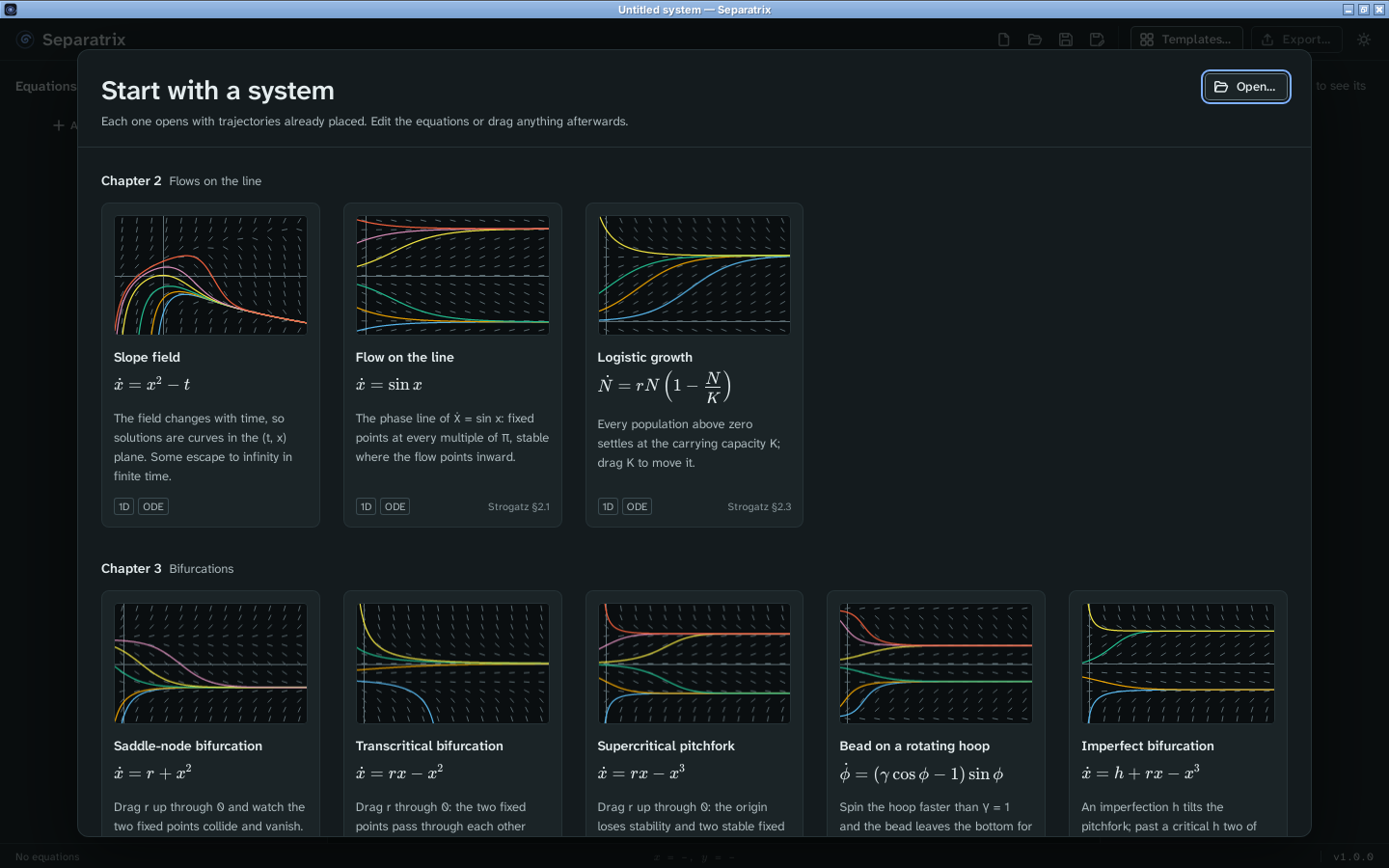
Separatrix opens on a gallery of example systems from Strogatz's Nonlinear Dynamics and Chaos. Click any card to start from that system.
Open a project
Separatrix saves projects as .sepx files. You can open one in three ways:
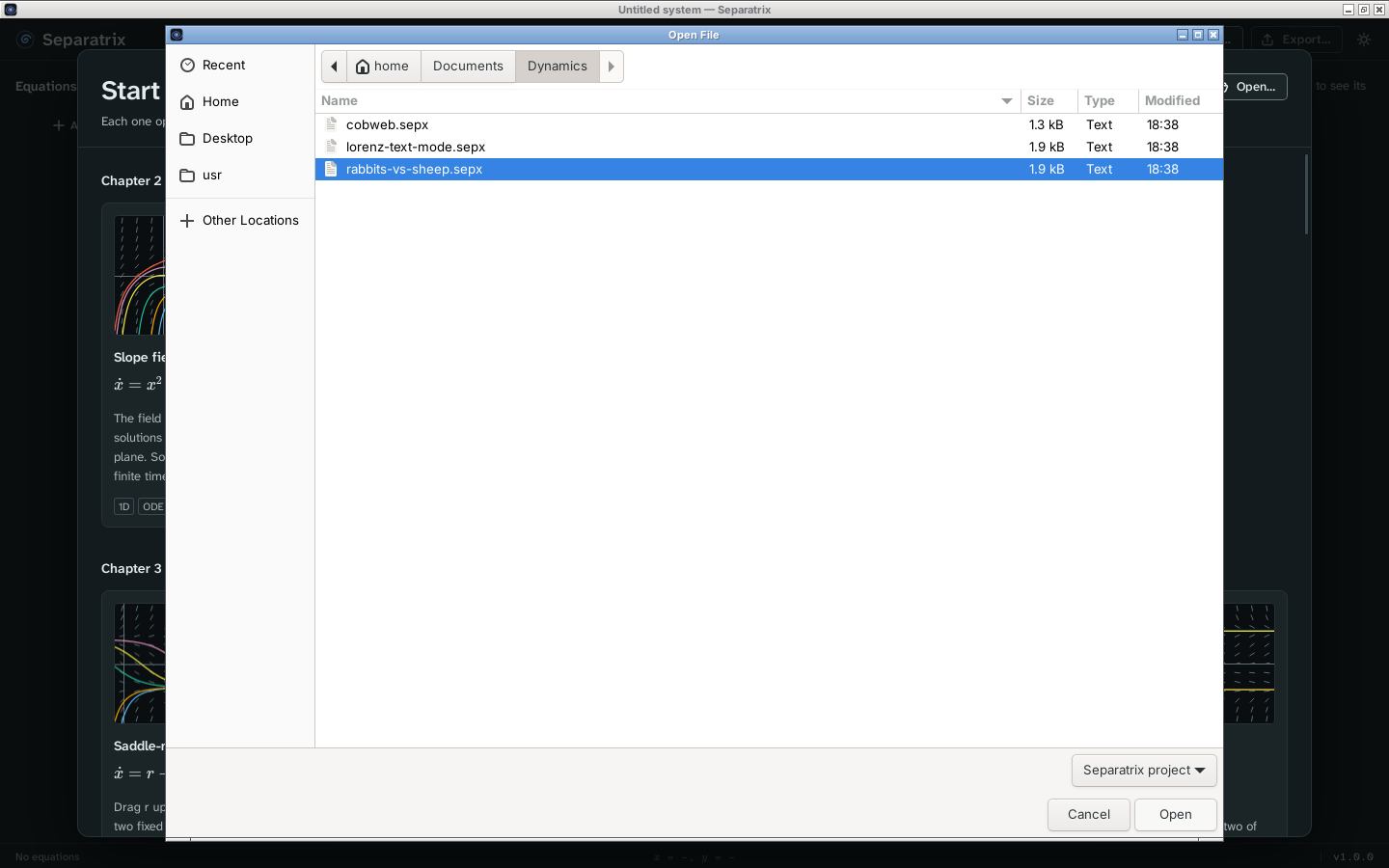
- Click Open… at the top right of the gallery, or press Ctrl+O at any time, then choose the file.
- Drag a
.sepxfile from the Files app onto the Separatrix window. - If you installed the .deb or the .rpm, double-click a
.sepxfile in the Files app.
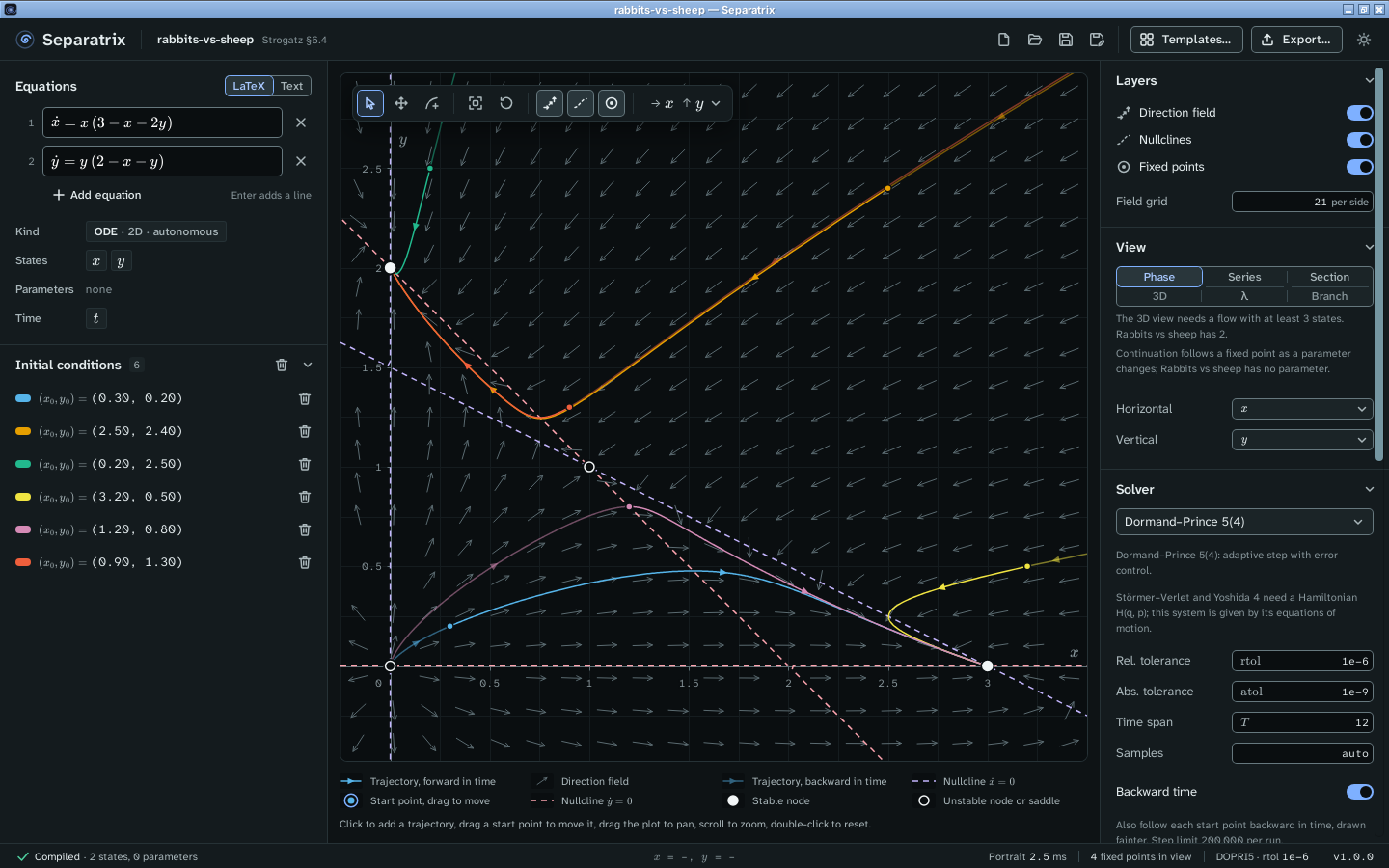
The project opens with its equations, trajectories and view as they were saved. The window title shows the file name.
The gallery also lists the projects you opened most recently under Recent. Click one to open it again.
Update Separatrix
Separatrix 1.0.0 cannot update itself. If you have 1.0.0, install the latest version once by following this guide from the top. From 1.0.1 on, updates install themselves.
The version you have is at the bottom right of the window.

Separatrix checks for a new version after it starts. When one exists, the status bar shows Update available beside the version. Click the version, then click Install and restart. You can click the version at any time to check by hand. If you have unsaved changes, Separatrix asks whether to save them first.
- AppImage. The update replaces the file in place.
- .deb or .rpm. Separatrix updates the installed package, so it asks for your password, as the first install did. You can also download the new file from the releases page, check it, and install it with the same command you used the first time.
Your projects and recent files stay where they are.
Uninstall Separatrix
Follow the line for the file you installed:
- AppImage: delete the
.AppImagefile. - .deb: run
sudo apt remove separatrix. - .rpm: run
sudo dnf remove separatrix, orsudo zypper remove separatrixon openSUSE.
Uninstalling keeps your .sepx projects. To also delete the list of recent projects, delete the
folder ~/.config/io.github.uncrayon.separatrix.